Help With CRA Documents
In order to proceed with funding for your business we will need additional information from you regarding your CRA account. Please follow the instructions below in order to help with your business funding application.
Step 1: Access Your CRA Account
Please proceed to the URL below to access your CRA account/profile:
https://www.canada.ca/en/revenue-agency/services/e-services/cra-login-services.html

Step 2: Locate the Payroll Section (RP)
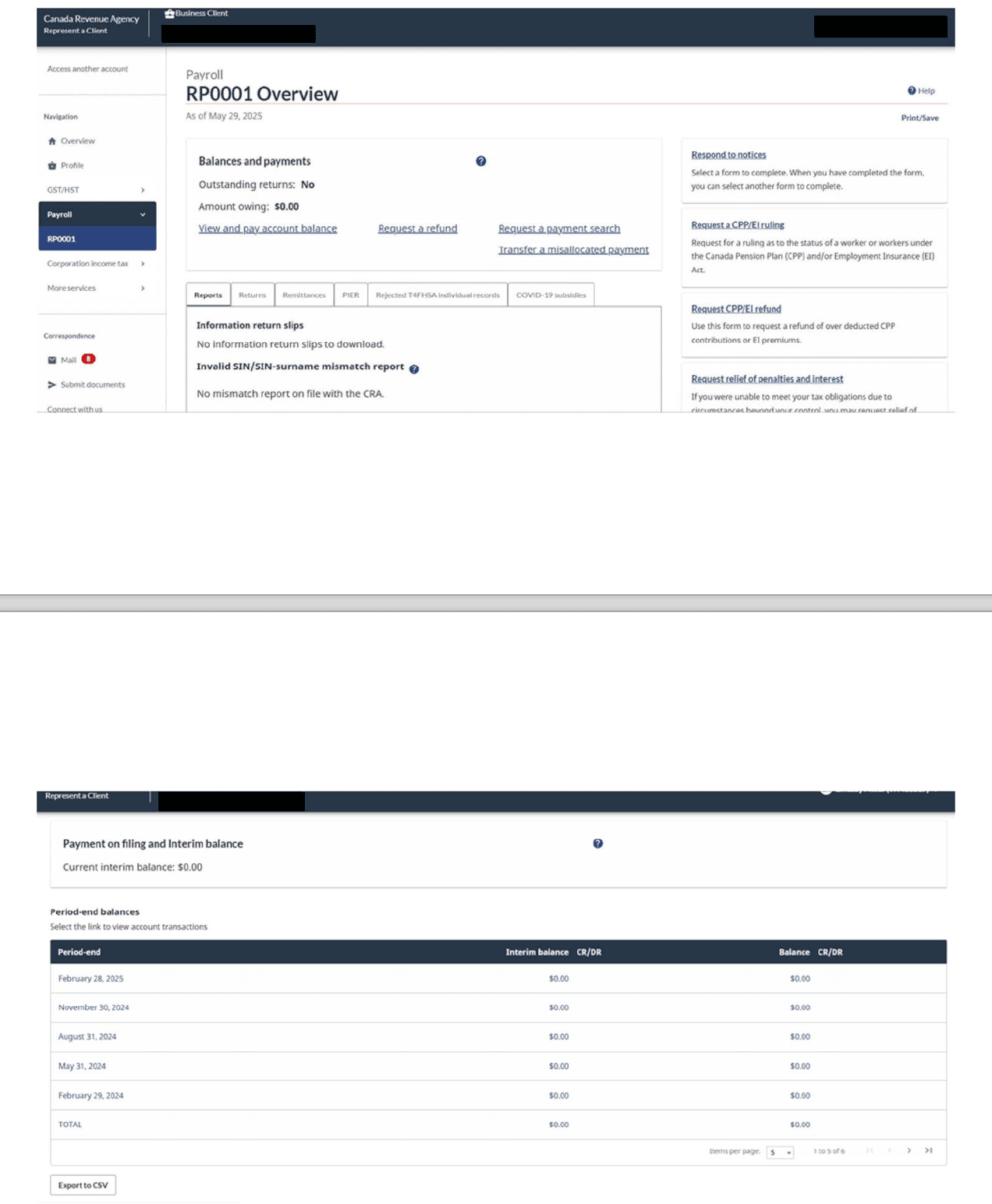
Once you have accessed your account proceed to locate the Payroll (RP) section. Once that is found please take a full page screenshot of the section (save it as a PDF file) – see the example screenshot below.
Step 3: Locate the Sales Taxes (RT)
Once you have finished with the Payroll Section, please proceed to the Sales Taxes section (RT) and take a full page screenshot of the Sales Taxes section (save it as a PDF file). Please make sure to also include your previous years of business – see the example screenshot below.

Step 4: Submit Screenshots to Capital Lynk
Save your screenshots as PDF files, then place them in a folder to send to us via email. Please rename the folder to your Full Name and Business Name. Please proceed to email the folder to your Funding Specialist or to support@capitallynk.com– include your Business Name in the email subject line.
"/><stop offset="1" stop-color="rgb(0, 0, 0)"/></linearGradient><linearGradient id="Bd9PEw_Za-905530557-linear-gradient" x1="0.787084077274742" x2="0.21291592272525794" y1="1" y2="0"><stop offset="0" stop-color="rgb(43, 170, 121)"/><stop offset="1" stop-color="rgb(0, 0, 0)"/></linearGradient><linearGradient id="wLIcra9V2-905530557-linear-gradient" x1="0.6876595053375154" x2="0.3123404946624846" y1="5.551115123125783e-17" y2="1"><stop offset="0" stop-color="rgb(43, 170, 121)"/><stop offset="1" stop-color="rgb(0, 0, 0)"/></linearGradient><linearGradient id="Inv57KRZU-905530557-linear-gradient" x1="0.30073143736911484" x2="0.6992685626308852" y1="5.551115123125783e-17" y2="1"><stop offset="0" stop-color="rgb(43, 170, 121)"/><stop offset="1" stop-color="rgb(0, 0, 0)"/></linearGradient></defs><g d="M 22.652 15.297 C 21.851 15.297 21.144 15.107 20.533 14.731 C 19.923 14.355 19.445 13.816 19.096 13.119 C 18.751 12.422 18.574 11.584 18.574 10.601 C 18.574 9.619 18.742 8.803 19.083 8.097 C 19.423 7.391 19.896 6.847 20.507 6.462 C 21.117 6.077 21.838 5.887 22.66 5.887 C 23.784 5.887 24.655 6.172 25.274 6.743 C 25.893 7.314 26.296 8.111 26.486 9.134 L 24.801 9.225 C 24.695 8.631 24.46 8.169 24.107 7.83 C 23.753 7.49 23.266 7.323 22.656 7.323 C 22.161 7.323 21.732 7.458 21.369 7.73 C 21.006 8.002 20.723 8.382 20.529 8.871 C 20.33 9.36 20.233 9.94 20.233 10.61 C 20.233 11.281 20.334 11.869 20.538 12.354 C 20.741 12.838 21.024 13.214 21.387 13.477 C 21.749 13.739 22.17 13.871 22.652 13.871 C 23.302 13.871 23.81 13.685 24.168 13.318 C 24.527 12.952 24.757 12.444 24.854 11.801 L 26.539 11.892 C 26.424 12.594 26.198 13.201 25.871 13.712 C 25.544 14.224 25.106 14.618 24.567 14.89 C 24.027 15.166 23.386 15.302 22.652 15.302 Z M 29.71 15.247 C 29.015 15.247 28.458 15.084 28.038 14.758 C 27.618 14.432 27.406 13.979 27.406 13.395 C 27.406 12.811 27.583 12.354 27.936 12.028 C 28.29 11.697 28.834 11.462 29.559 11.317 L 31.753 10.873 C 31.753 10.393 31.647 10.031 31.43 9.791 C 31.213 9.551 30.899 9.428 30.475 9.428 C 30.095 9.428 29.794 9.519 29.577 9.7 C 29.36 9.881 29.206 10.144 29.126 10.479 L 27.516 10.402 C 27.649 9.682 27.972 9.134 28.48 8.749 C 28.993 8.364 29.657 8.174 30.475 8.174 C 31.417 8.174 32.129 8.418 32.611 8.903 C 33.093 9.388 33.336 10.085 33.336 10.991 L 33.336 13.45 C 33.336 13.626 33.367 13.749 33.429 13.816 C 33.491 13.884 33.584 13.916 33.708 13.916 L 33.92 13.916 L 33.92 15.094 C 33.871 15.112 33.792 15.125 33.677 15.13 C 33.562 15.134 33.451 15.143 33.336 15.143 C 33.062 15.143 32.819 15.098 32.606 15.012 C 32.39 14.921 32.226 14.767 32.111 14.541 C 31.996 14.319 31.939 14.011 31.939 13.622 L 32.076 13.721 C 32.009 14.016 31.868 14.283 31.647 14.514 C 31.426 14.745 31.151 14.926 30.824 15.053 C 30.497 15.18 30.121 15.243 29.71 15.243 Z M 30.033 14.066 C 30.386 14.066 30.692 13.993 30.948 13.848 C 31.205 13.703 31.404 13.504 31.541 13.25 C 31.678 12.997 31.753 12.698 31.753 12.349 L 31.753 11.969 L 30.046 12.322 C 29.692 12.399 29.436 12.512 29.285 12.657 C 29.13 12.807 29.055 12.997 29.055 13.232 C 29.055 13.495 29.139 13.699 29.307 13.839 C 29.475 13.984 29.719 14.056 30.033 14.056 Z M 34.946 16.995 L 34.946 8.323 L 36.467 8.323 L 36.503 9.768 L 36.343 9.691 C 36.507 9.193 36.777 8.812 37.153 8.554 C 37.529 8.296 37.966 8.169 38.471 8.169 C 39.099 8.169 39.62 8.328 40.036 8.649 C 40.452 8.971 40.766 9.397 40.969 9.931 C 41.177 10.465 41.279 11.054 41.279 11.706 C 41.279 12.358 41.173 12.947 40.965 13.481 C 40.753 14.016 40.439 14.441 40.023 14.763 C 39.607 15.084 39.085 15.243 38.457 15.243 C 38.126 15.243 37.82 15.184 37.533 15.066 C 37.246 14.949 37.007 14.781 36.803 14.559 C 36.6 14.337 36.458 14.084 36.374 13.785 L 36.525 13.658 L 36.525 16.991 L 34.941 16.991 Z M 38.09 13.93 C 38.568 13.93 38.948 13.735 39.222 13.341 C 39.497 12.947 39.638 12.404 39.638 11.711 C 39.638 11.018 39.501 10.474 39.222 10.08 C 38.944 9.686 38.568 9.492 38.09 9.492 C 37.767 9.492 37.493 9.573 37.259 9.741 C 37.029 9.904 36.848 10.153 36.719 10.483 C 36.591 10.814 36.529 11.222 36.529 11.715 C 36.529 12.209 36.591 12.616 36.715 12.947 C 36.839 13.278 37.02 13.522 37.254 13.69 C 37.489 13.853 37.767 13.939 38.09 13.939 Z M 42.486 7.422 L 42.486 5.978 L 44.131 5.978 L 44.131 7.422 Z M 42.513 15.094 L 42.513 8.323 L 44.096 8.323 L 44.096 15.094 Z M 45.126 9.578 L 45.126 8.323 L 49.496 8.323 L 49.496 9.578 Z M 48.085 15.094 C 47.426 15.094 46.939 14.935 46.63 14.623 C 46.32 14.31 46.166 13.821 46.166 13.151 L 46.166 6.734 L 47.749 6.734 L 47.749 12.997 C 47.749 13.309 47.815 13.527 47.948 13.649 C 48.08 13.771 48.288 13.835 48.567 13.835 L 49.496 13.835 L 49.496 15.089 L 48.085 15.089 Z M 52.543 15.247 C 51.848 15.247 51.291 15.084 50.871 14.758 C 50.451 14.432 50.239 13.979 50.239 13.395 C 50.239 12.811 50.416 12.354 50.769 12.028 C 51.123 11.697 51.667 11.462 52.392 11.317 L 54.586 10.873 C 54.586 10.393 54.48 10.031 54.263 9.791 C 54.046 9.551 53.732 9.428 53.308 9.428 C 52.927 9.428 52.627 9.519 52.41 9.7 C 52.193 9.881 52.039 10.144 51.959 10.479 L 50.349 10.402 C 50.482 9.682 50.805 9.134 51.313 8.749 C 51.826 8.364 52.49 8.174 53.308 8.174 C 54.25 8.174 54.962 8.418 55.444 8.903 C 55.926 9.388 56.169 10.085 56.169 10.991 L 56.169 13.45 C 56.169 13.626 56.2 13.749 56.262 13.816 C 56.324 13.884 56.417 13.916 56.541 13.916 L 56.753 13.916 L 56.753 15.094 C 56.704 15.112 56.625 15.125 56.51 15.13 C 56.395 15.134 56.284 15.143 56.169 15.143 C 55.895 15.143 55.652 15.098 55.439 15.012 C 55.223 14.921 55.059 14.767 54.944 14.541 C 54.829 14.319 54.772 14.011 54.772 13.622 L 54.909 13.721 C 54.842 14.016 54.701 14.283 54.48 14.514 C 54.259 14.745 53.984 14.926 53.657 15.053 C 53.33 15.18 52.954 15.243 52.543 15.243 Z M 52.866 14.066 C 53.219 14.066 53.524 13.993 53.781 13.848 C 54.037 13.703 54.236 13.504 54.374 13.25 C 54.511 12.997 54.586 12.698 54.586 12.349 L 54.586 11.969 L 52.879 12.322 C 52.525 12.399 52.269 12.512 52.118 12.657 C 51.963 12.807 51.888 12.997 51.888 13.232 C 51.888 13.495 51.972 13.699 52.14 13.839 C 52.308 13.984 52.552 14.056 52.866 14.056 Z M 59.265 15.094 C 58.787 15.094 58.402 14.967 58.115 14.713 C 57.827 14.46 57.682 14.052 57.682 13.495 L 57.682 6.091 L 59.265 6.091 L 59.265 13.332 C 59.265 13.499 59.309 13.626 59.393 13.712 C 59.481 13.798 59.601 13.839 59.76 13.839 L 60.242 13.839 L 60.242 15.094 Z M 64.404 15.094 L 64.404 6.091 L 66.013 6.091 L 66.013 14.586 L 65.133 13.662 L 70.184 13.662 L 70.184 15.094 L 64.399 15.094 Z M 71.02 16.995 L 71.02 15.741 L 71.86 15.741 C 72.076 15.741 72.231 15.705 72.337 15.641 C 72.439 15.574 72.523 15.46 72.581 15.297 L 72.766 14.826 L 72.306 14.826 L 69.94 8.323 L 71.586 8.323 L 73.244 13.305 L 74.827 8.323 L 76.472 8.323 L 73.885 15.804 C 73.735 16.226 73.527 16.534 73.262 16.719 C 72.992 16.905 72.62 17 72.143 17 L 71.015 17 Z M 77.335 15.094 L 77.335 8.323 L 78.772 8.323 L 78.834 10.225 L 78.648 10.148 C 78.715 9.673 78.852 9.292 79.055 9.007 C 79.263 8.722 79.515 8.509 79.811 8.373 C 80.108 8.237 80.435 8.169 80.789 8.169 C 81.275 8.169 81.686 8.278 82.022 8.5 C 82.359 8.722 82.611 9.021 82.783 9.406 C 82.956 9.791 83.044 10.234 83.044 10.742 L 83.044 15.089 L 81.461 15.089 L 81.461 11.258 C 81.461 10.877 81.425 10.556 81.35 10.293 C 81.275 10.031 81.156 9.831 80.983 9.691 C 80.815 9.551 80.59 9.483 80.307 9.483 C 79.886 9.483 79.55 9.637 79.298 9.94 C 79.046 10.243 78.922 10.683 78.922 11.258 L 78.922 15.089 L 77.339 15.089 Z M 84.663 15.094 L 84.663 6.091 L 86.246 6.091 L 86.246 11.38 L 88.957 8.323 L 90.912 8.323 L 88.324 11.14 L 91 15.098 L 89.218 15.098 L 87.285 12.105 L 86.246 13.232 L 86.246 15.098 L 84.663 15.098 Z M 7.518 16.615 L 12.79 11.67 L 12.803 6.113 L 7.518 11.072 Z M 5.285 16.615 L 0.018 11.67 L 0 6.113 L 5.285 11.072 Z M 12.829 5.914 L 6.412 0 L 6.412 5.543 L 12.843 11.471 Z M 6.43 5.543 L 0 11.471 L 0 5.928 L 6.43 0 Z" fill="transparent" height="17.00000016433497px" id="jZAz3FQty" width="91.00000177691287px"><path d="M 4.077 9.41 C 3.277 9.41 2.569 9.22 1.959 8.844 C 1.349 8.468 0.871 7.929 0.522 7.232 C 0.177 6.535 0 5.697 0 4.714 C 0 3.731 0.168 2.916 0.509 2.21 C 0.849 1.503 1.322 0.96 1.933 0.575 C 2.543 0.19 3.264 0 4.086 0 C 5.21 0 6.081 0.285 6.7 0.856 C 7.319 1.426 7.722 2.223 7.912 3.247 L 6.227 3.338 C 6.121 2.744 5.886 2.282 5.532 1.943 C 5.179 1.603 4.692 1.436 4.082 1.436 C 3.587 1.436 3.158 1.571 2.795 1.843 C 2.432 2.115 2.149 2.495 1.955 2.984 C 1.756 3.473 1.658 4.053 1.658 4.723 C 1.658 5.393 1.76 5.982 1.964 6.467 C 2.167 6.951 2.45 7.327 2.813 7.59 C 3.175 7.852 3.595 7.984 4.077 7.984 C 4.728 7.984 5.236 7.798 5.594 7.431 C 5.953 7.064 6.183 6.557 6.28 5.914 L 7.965 6.005 C 7.85 6.707 7.624 7.314 7.297 7.825 C 6.97 8.337 6.532 8.731 5.992 9.003 C 5.453 9.279 4.812 9.415 4.077 9.415 Z M 11.136 9.36 C 10.441 9.36 9.884 9.197 9.464 8.871 C 9.044 8.545 8.832 8.092 8.832 7.508 C 8.832 6.924 9.008 6.467 9.362 6.141 C 9.716 5.81 10.26 5.575 10.985 5.43 L 13.179 4.986 C 13.179 4.506 13.073 4.144 12.856 3.904 C 12.639 3.664 12.325 3.541 11.901 3.541 C 11.52 3.541 11.22 3.632 11.003 3.813 C 10.786 3.994 10.631 4.257 10.552 4.592 L 8.942 4.515 C 9.075 3.795 9.398 3.247 9.906 2.862 C 10.419 2.477 11.083 2.287 11.901 2.287 C 12.843 2.287 13.555 2.531 14.037 3.016 C 14.519 3.501 14.762 4.198 14.762 5.104 L 14.762 7.563 C 14.762 7.739 14.793 7.861 14.855 7.929 C 14.917 7.997 15.01 8.029 15.133 8.029 L 15.346 8.029 L 15.346 9.206 C 15.297 9.225 15.218 9.238 15.103 9.243 C 14.988 9.247 14.877 9.256 14.762 9.256 C 14.488 9.256 14.245 9.211 14.032 9.125 C 13.816 9.034 13.652 8.88 13.537 8.654 C 13.422 8.432 13.365 8.124 13.365 7.735 L 13.502 7.834 C 13.435 8.129 13.294 8.396 13.073 8.627 C 12.852 8.858 12.577 9.039 12.25 9.166 C 11.923 9.292 11.547 9.356 11.136 9.356 Z M 11.458 8.178 C 11.812 8.178 12.117 8.106 12.374 7.961 C 12.63 7.816 12.829 7.617 12.967 7.363 C 13.104 7.11 13.179 6.811 13.179 6.462 L 13.179 6.082 L 11.472 6.435 C 11.118 6.512 10.861 6.625 10.711 6.77 C 10.556 6.92 10.481 7.11 10.481 7.345 C 10.481 7.608 10.565 7.812 10.733 7.952 C 10.901 8.097 11.144 8.169 11.458 8.169 Z M 16.372 11.108 L 16.372 2.436 L 17.893 2.436 L 17.928 3.881 L 17.769 3.804 C 17.933 3.306 18.203 2.925 18.579 2.667 C 18.954 2.409 19.392 2.282 19.896 2.282 C 20.524 2.282 21.046 2.441 21.462 2.762 C 21.878 3.084 22.192 3.51 22.395 4.044 C 22.603 4.578 22.705 5.167 22.705 5.819 C 22.705 6.471 22.599 7.06 22.391 7.594 C 22.178 8.129 21.864 8.554 21.449 8.876 C 21.033 9.197 20.511 9.356 19.883 9.356 C 19.551 9.356 19.246 9.297 18.959 9.179 C 18.671 9.062 18.433 8.894 18.229 8.672 C 18.026 8.45 17.884 8.197 17.8 7.898 L 17.951 7.771 L 17.951 11.104 L 16.367 11.104 Z M 19.516 8.043 C 19.994 8.043 20.374 7.848 20.648 7.454 C 20.922 7.06 21.064 6.517 21.064 5.824 C 21.064 5.131 20.927 4.587 20.648 4.193 C 20.37 3.799 19.994 3.605 19.516 3.605 C 19.193 3.605 18.919 3.686 18.685 3.854 C 18.455 4.017 18.273 4.266 18.145 4.596 C 18.017 4.927 17.955 5.335 17.955 5.828 C 17.955 6.322 18.017 6.729 18.141 7.06 C 18.265 7.391 18.446 7.635 18.68 7.803 C 18.915 7.966 19.193 8.052 19.516 8.052 Z M 23.912 1.535 L 23.912 0.091 L 25.557 0.091 L 25.557 1.535 Z M 23.939 9.206 L 23.939 2.436 L 25.522 2.436 L 25.522 9.206 Z M 26.552 3.691 L 26.552 2.436 L 30.922 2.436 L 30.922 3.691 Z M 29.511 9.206 C 28.852 9.206 28.365 9.048 28.056 8.735 C 27.746 8.423 27.591 7.934 27.591 7.264 L 27.591 0.847 L 29.175 0.847 L 29.175 7.11 C 29.175 7.422 29.241 7.64 29.374 7.762 C 29.506 7.884 29.714 7.948 29.993 7.948 L 30.922 7.948 L 30.922 9.202 L 29.511 9.202 Z M 33.969 9.36 C 33.274 9.36 32.717 9.197 32.297 8.871 C 31.877 8.545 31.664 8.092 31.664 7.508 C 31.664 6.924 31.841 6.467 32.195 6.141 C 32.549 5.81 33.093 5.575 33.818 5.43 L 36.012 4.986 C 36.012 4.506 35.906 4.144 35.689 3.904 C 35.472 3.664 35.158 3.541 34.734 3.541 C 34.353 3.541 34.053 3.632 33.836 3.813 C 33.619 3.994 33.464 4.257 33.385 4.592 L 31.775 4.515 C 31.908 3.795 32.231 3.247 32.739 2.862 C 33.252 2.477 33.915 2.287 34.734 2.287 C 35.676 2.287 36.388 2.531 36.87 3.016 C 37.352 3.501 37.595 4.198 37.595 5.104 L 37.595 7.563 C 37.595 7.739 37.626 7.861 37.688 7.929 C 37.75 7.997 37.843 8.029 37.966 8.029 L 38.179 8.029 L 38.179 9.206 C 38.13 9.225 38.05 9.238 37.935 9.243 C 37.82 9.247 37.71 9.256 37.595 9.256 C 37.321 9.256 37.078 9.211 36.865 9.125 C 36.649 9.034 36.485 8.88 36.37 8.654 C 36.255 8.432 36.197 8.124 36.197 7.735 L 36.335 7.834 C 36.268 8.129 36.127 8.396 35.906 8.627 C 35.684 8.858 35.41 9.039 35.083 9.166 C 34.756 9.292 34.38 9.356 33.969 9.356 Z M 34.291 8.178 C 34.645 8.178 34.95 8.106 35.207 7.961 C 35.463 7.816 35.662 7.617 35.799 7.363 C 35.937 7.11 36.012 6.811 36.012 6.462 L 36.012 6.082 L 34.305 6.435 C 33.951 6.512 33.694 6.625 33.544 6.77 C 33.389 6.92 33.314 7.11 33.314 7.345 C 33.314 7.608 33.398 7.812 33.566 7.952 C 33.734 8.097 33.977 8.169 34.291 8.169 Z M 40.691 9.206 C 40.213 9.206 39.828 9.08 39.541 8.826 C 39.253 8.572 39.107 8.165 39.107 7.608 L 39.107 0.204 L 40.691 0.204 L 40.691 7.445 C 40.691 7.612 40.735 7.739 40.819 7.825 C 40.907 7.911 41.027 7.952 41.186 7.952 L 41.668 7.952 L 41.668 9.206 Z M 45.829 9.206 L 45.829 0.204 L 47.439 0.204 L 47.439 8.699 L 46.559 7.775 L 51.61 7.775 L 51.61 9.206 L 45.825 9.206 Z M 52.445 11.108 L 52.445 9.854 L 53.286 9.854 C 53.502 9.854 53.657 9.818 53.763 9.754 C 53.865 9.686 53.949 9.573 54.007 9.41 L 54.192 8.939 L 53.732 8.939 L 51.366 2.436 L 53.011 2.436 L 54.67 7.418 L 56.253 2.436 L 57.898 2.436 L 55.311 9.917 C 55.161 10.339 54.953 10.647 54.688 10.832 C 54.418 11.018 54.046 11.113 53.569 11.113 L 52.441 11.113 Z M 58.761 9.206 L 58.761 2.436 L 60.198 2.436 L 60.26 4.338 L 60.074 4.261 C 60.14 3.786 60.277 3.405 60.481 3.12 C 60.689 2.835 60.941 2.622 61.237 2.486 C 61.533 2.35 61.861 2.282 62.215 2.282 C 62.701 2.282 63.112 2.391 63.448 2.613 C 63.784 2.835 64.037 3.134 64.209 3.519 C 64.381 3.904 64.47 4.347 64.47 4.855 L 64.47 9.202 L 62.887 9.202 L 62.887 5.371 C 62.887 4.99 62.851 4.669 62.776 4.406 C 62.701 4.144 62.582 3.944 62.409 3.804 C 62.241 3.664 62.016 3.596 61.732 3.596 C 61.312 3.596 60.976 3.75 60.724 4.053 C 60.472 4.356 60.348 4.796 60.348 5.371 L 60.348 9.202 L 58.765 9.202 Z M 66.089 9.206 L 66.089 0.204 L 67.672 0.204 L 67.672 5.493 L 70.383 2.436 L 72.337 2.436 L 69.75 5.253 L 72.426 9.211 L 70.644 9.211 L 68.711 6.218 L 67.672 7.345 L 67.672 9.211 L 66.089 9.211 Z" fill="rgb(0, 0, 0)" height="11.112946197812752px" id="prGwSERxx" transform="translate(18.574 5.887)" width="72.42586504290408px"/><path d="M 0 10.502 L 5.272 5.556 L 5.285 0 L 0 4.959 Z" fill="url(%23sx701NTba-905530557-linear-gradient)" height="10.501598263137655px" id="sx701NTba" transform="translate(7.518 6.113)" width="5.28478392040363px"/><path d="M 5.285 10.502 L 0.018 5.556 L 0 0 L 5.285 4.959 Z" fill="url(%23Bd9PEw_Za-905530557-linear-gradient)" height="10.501598263137655px" id="Bd9PEw_Za" transform="translate(0 6.113)" width="5.284783919413402px"/><path d="M 6.417 5.914 L 0 0 L 0 5.543 L 6.43 11.471 Z" fill="url(%23wLIcra9V2-905530557-linear-gradient)" height="11.470697887247804px" id="wLIcra9V2" transform="translate(6.412 0)" width="6.4301889697297785px"/><path d="M 6.43 5.543 L 0 11.471 L 0 5.928 L 6.43 0 Z" fill="url(%23Inv57KRZU-905530557-linear-gradient)" height="11.470697887247804px" id="Inv57KRZU" width="6.430188969729775px"/></g></svg>)